English Translation
Cloudflare is a renowned provider offering free Content Delivery Network (CDN) and security services. By leveraging Cloudflare’s CDN, you can achieve a massive leap in website responsiveness for users across the globe! In addition to accelerating your site, Cloudflare provides robust protection through SSL encryption and Bot Management, along with several other powerful features.
But what exactly is a CDN? Here is a detailed breakdown:
What is a CDN? A Content Delivery Network (CDN) is an intelligent virtual network built upon existing network infrastructure. It relies on edge servers deployed globally, utilizing functional modules such as load balancing, content distribution, and scheduling via a central platform. This enables users to retrieve content from the nearest available server, effectively reducing network congestion and significantly improving response times and cache hit rates. The core technologies of a CDN revolve around content storage and distribution.
The primary advantage of Cloudflare is its ownership of one of the world's largest server networks. No matter where your visitors are located, Cloudflare ensures they receive the fastest possible experience. Since loading speed is a critical ranking factor for search engines, using Cloudflare will undoubtedly help improve your website's SEO.
Cloudflare stands as one of the largest and most popular CDNs on the planet. Their network spans over 200 cities across more than 90 countries, and those numbers continue to grow.
Compared to traditional CDNs, Cloudflare offers a suite of advanced features:
DDoS Mitigation: Defending your site against distributed denial-of-service attacks.
Traffic Analytics: Analyzing every request made to your website.
Easy SSL Deployment: One-click installation of SSL certificates.
Network Gateways: Seamless bridging between different network protocols.
How does a CDN work?
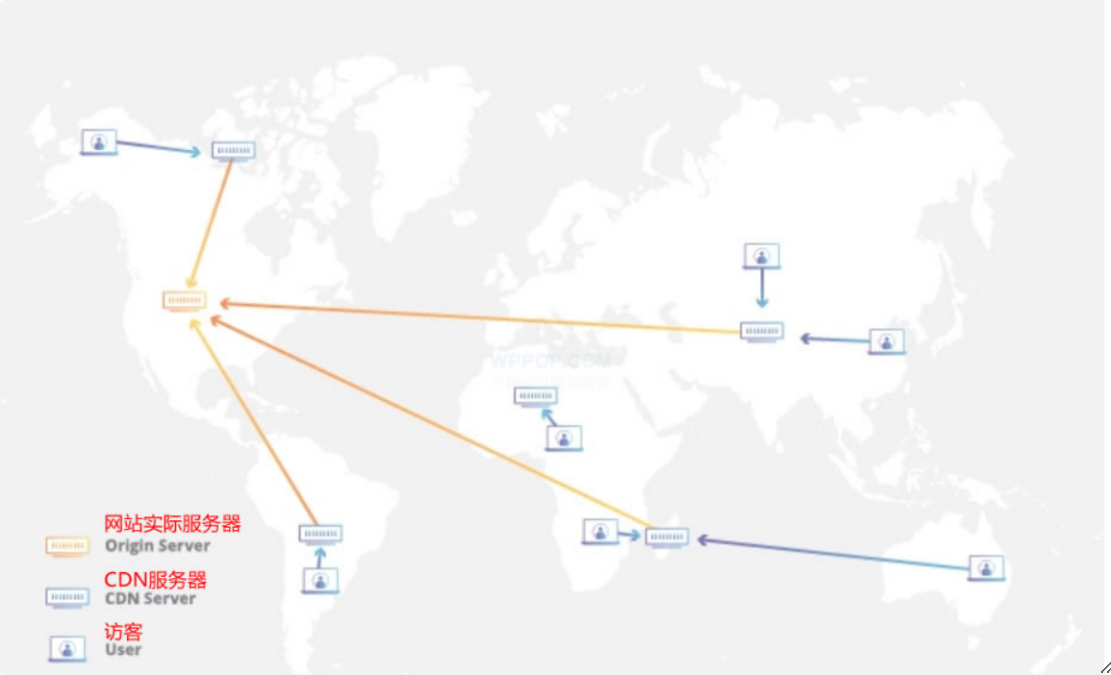
How Does a CDN Work?
Once we understand what a CDN is, we need to clarify exactly how it works and how it accelerates your website.
As you know, websites are hosted on servers located in specific geographic regions. Therefore, when a user visits your site, they experience faster loading speeds if they are physically closer to the server's location.
For global users, physical distance often leads to sluggish performance. By combining Cloudflare CDN with your WordPress site, you can easily mitigate this issue. After signing up, Cloudflare stores all of your website's static files—files that can be delivered directly to users without needing to be generated or processed on the fly. Examples include images, JavaScript, CSS files, and videos.
When a user tries to access your site, Cloudflare serves these static files from the server nearest to the user’s location. This significantly boosts loading speed and improves the overall user experience.
What Are the Benefits of Cloudflare CDN?
Now that you understand the mechanics, let’s look at the specific advantages Cloudflare brings to your WordPress-based cross-border (B2B/B2C) website:
Faster Loading Times: Leveraging a massive global network, Cloudflare routes responses through optimized paths to ensure maximum speed. Its Argo Smart Routing technology improves performance by an average of 30%.
Site Availability: While most hosts promise 99.99% uptime, crashes still happen. Cloudflare "saves the day" by serving a cached version of your site from its servers even if your origin server goes down.
Built-in Firewall: Protect your site from blacklisted IPs and unauthorized web application access.
Image Optimization: Cloudflare automatically optimizes and compresses images (including WebP conversion). Smaller files mean faster load times.
SSL: If your site lacks an SSL certificate, Cloudflare enables HTTPS, providing that secure "green padlock" in visitors' browsers.
Fast DNS: As one of the world's fastest DNS providers, Cloudflare reduces Time to First Byte (TTFB).
Custom Security Rules: Set specific rules to protect sensitive areas, such as your WordPress dashboard (
/wp-admin).DDoS Protection: Guard against Distributed Denial of Service attacks. Imagine a DDoS attack as a massive traffic jam that blocks legitimate cars (users) from reaching their destination; Cloudflare filters out this malicious "traffic" to keep your site accessible.
Performance Extras: Includes code minification, Brotli compression, and other web performance best practices.
1. Sign Up for a Free Cloudflare Account
First, visit the Cloudflare Official Website. Fortunately, the site supports multiple languages, making it very user-friendly.
Click the "Sign Up" button, enter your email address, and set a password.
Note: Your password must meet these requirements:
At least 8 characters long.
Contain at least one number.
Contain at least one special character.
2. Add Your WordPress Site to Cloudflare
2.1 Add Site
After creating your account, locate and click the "+ Add a Site" button in the top right corner of the dashboard, as shown below:
[Insert Image Placeholder: Cloudflare Add Site Interface]

2.2 Enter Domain and Select Plan
In the "Enter your site (example.com)" input box shown above, enter your WordPress website's domain name, then click the "Add Site" button.
Once you click, the system will automatically scan your domain's DNS records and redirect you to the Plan Selection page. You can choose the "Free" plan, which is sufficient for most users, or opt for a paid subscription if you require more advanced features and premium support, as illustrated below:
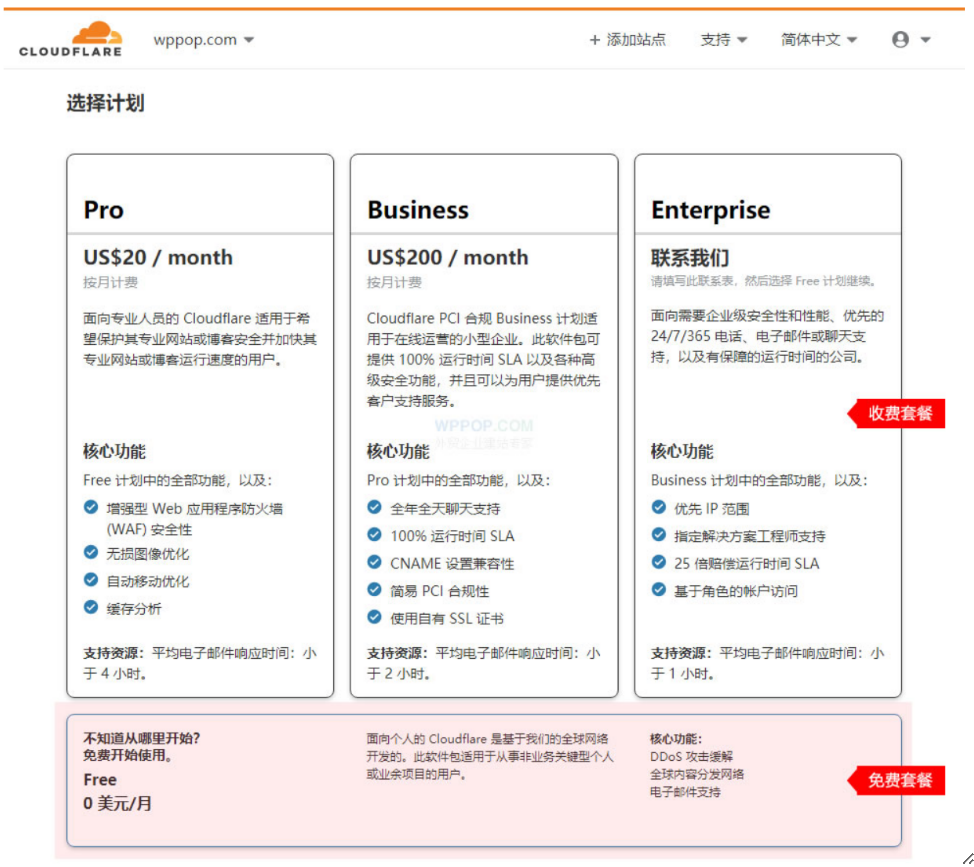
3. Verify Domain DNS Records
After clicking the Continue button shown above, Cloudflare will automatically scan your site to identify existing DNS records. These records will then be automatically imported into your Cloudflare configuration.
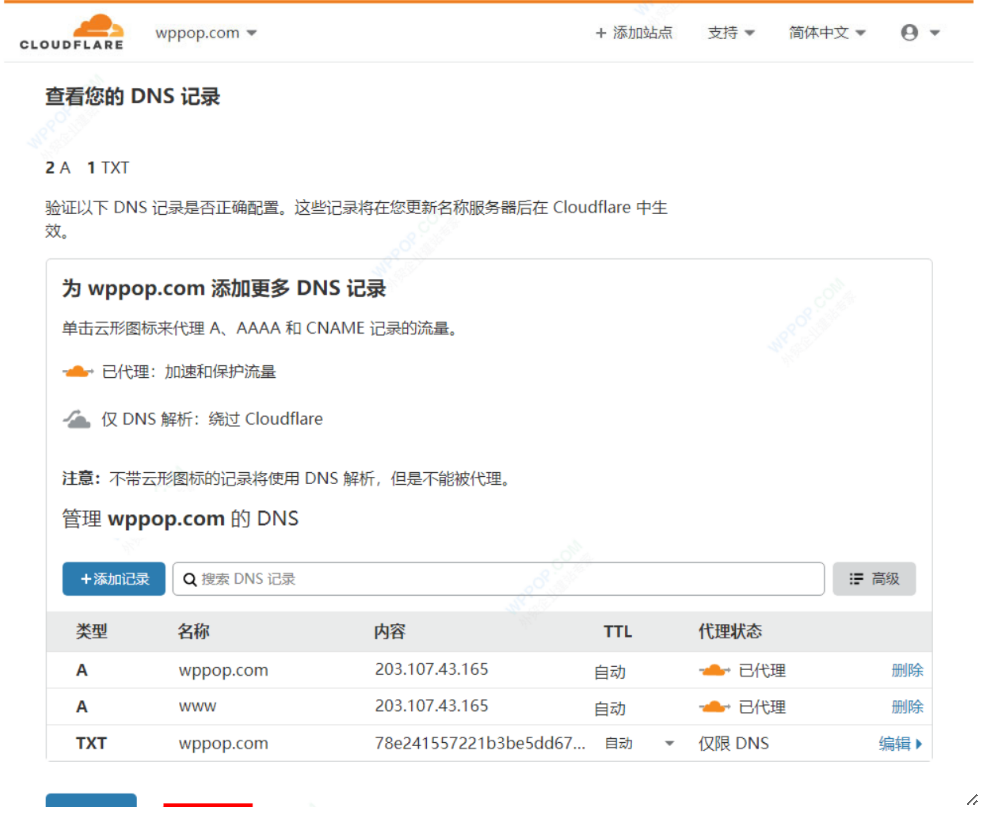
4. Change your domain name servers to Cloudflare.
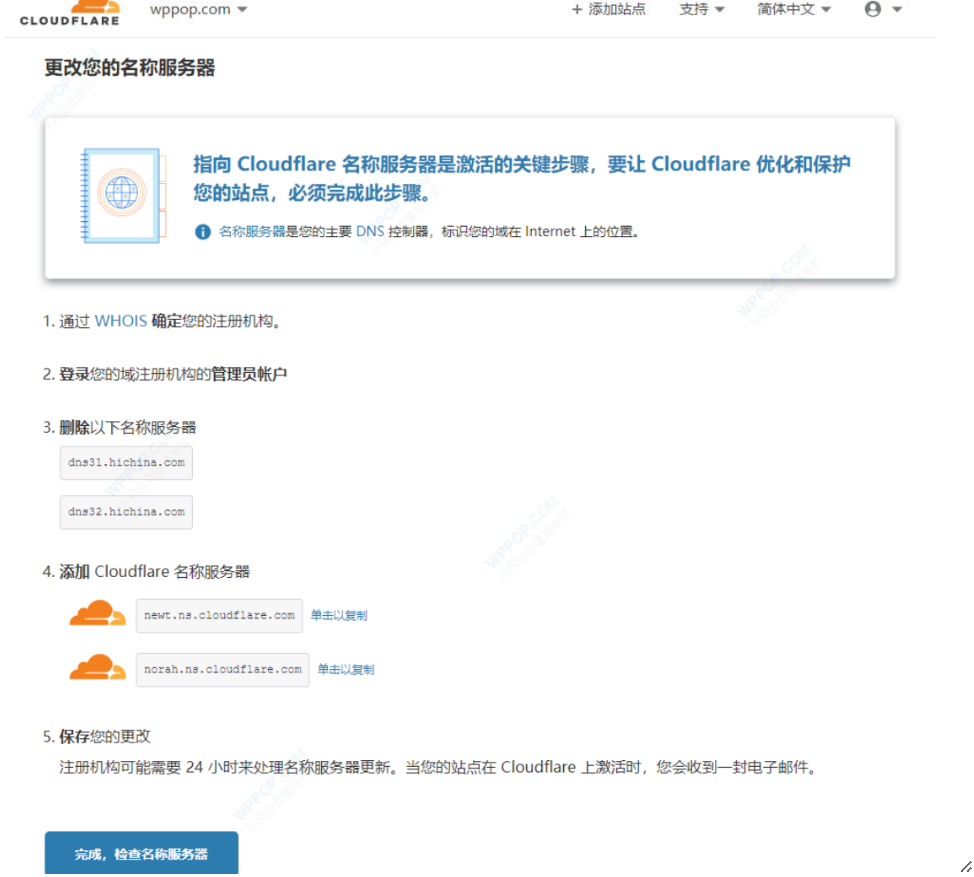
Point Your Domain to Cloudflare Nameservers
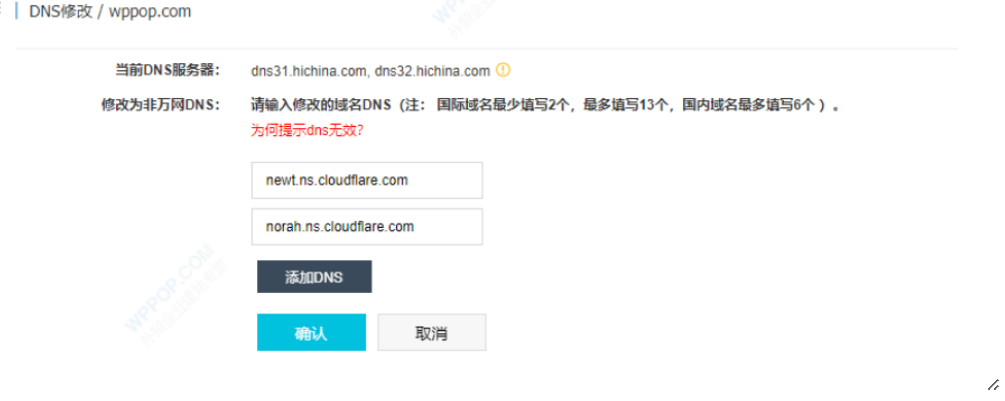
When you purchase a domain, it comes with two default DNS servers. These default settings vary depending on the registrar. Below, we use Alibaba Cloud (Aliyun) domain management as an example for illustration:
Updating your nameservers to point to Cloudflare is a critical step for activation. This step must be completed for Cloudflare to successfully optimize and protect your site.
Follow the prompts provided by Cloudflare to resolve the corresponding DNS records.
Important Note: It is not recommended to enable Cloudflare (proxying) for business emails, FTP, or specific subdomains, as it may lead to various DNS connectivity issues.
Using Alibaba Cloud Domain Management as an example: log in to your console and navigate to Domain Management -> DNS Modification (Modify DNS), as shown below:
DNS Propagation and Verification
The time required for DNS server changes to take effect depends on the TTL (Time to Live) of the nameserver records cached by local DNS providers; this process typically takes up to 48 hours.
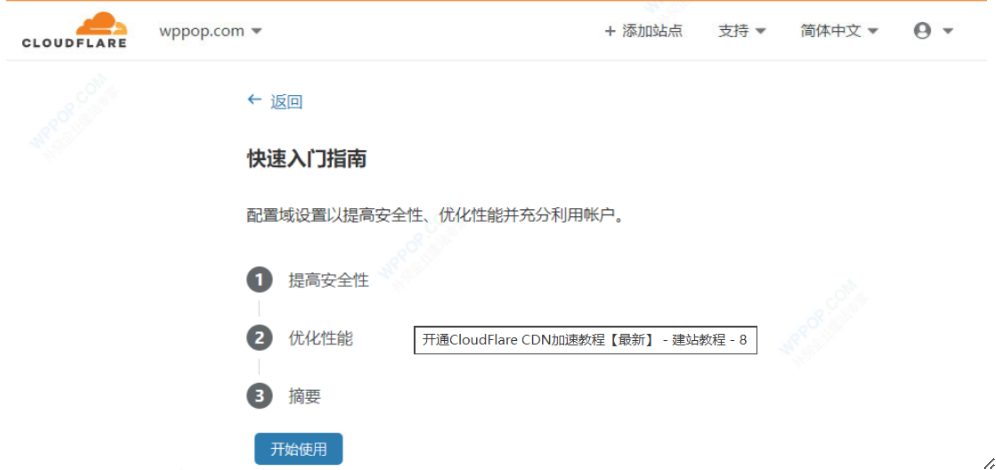
Once the nameserver update is complete, you will receive a confirmation email from Cloudflare. Additionally, you can monitor the status directly on the Cloudflare dashboard. During this transition, your website will remain fully accessible with zero downtime or impact on your users.
Conclusion and Management
At this point, the process of applying for Cloudflare CDN and configuring it for your website is complete. All that remains is to wait for your domain’s nameservers to finish updating to Cloudflare. Once active, you will be able to explore more advanced Cloudflare configuration options.
Cloudflare CDN Management
Once the Cloudflare setup and DNS resolution are fully active—for instance, Alibaba Cloud’s DNS propagation is quite fast, often taking only about 10 minutes—you will be greeted by the Cloudflare Welcome Interface shown below:
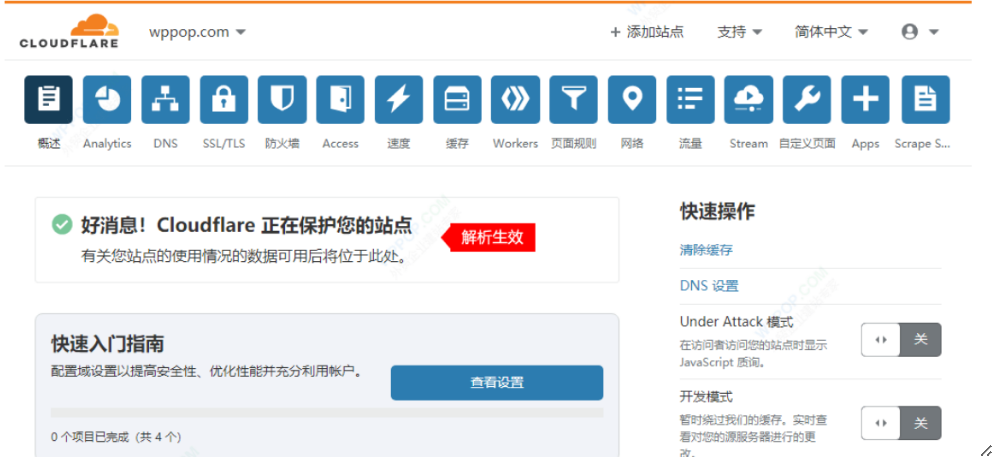
The Cloudflare dashboard provides a wide array of management settings, allowing you to fine-tune your CDN configurations based on your specific needs. If you are unsure about any setting, it is recommended to keep the default configuration.
Overview: View your site’s CDN status over 24-hour, 7-day, or 30-day periods. Metrics include Unique Visitors, Total Requests, Percentage Cached, Total Data Served, and Cached Data.
Analytics: In-depth analysis of web traffic, including rankings of visitors by country/region.
DNS: Manage your domain’s DNS records directly through Cloudflare.
SSL/TLS: Manage and configure your website’s SSL/TLS encryption modes.
Firewall (WAF): Set up website firewall rules. If you are unfamiliar with these settings, keep them at default.
Access: Use Cloudflare Access to securely access internal applications without the need for a VPN.
Speed: Statistical analysis of website loading speeds and performance comparisons with and without Cloudflare CDN.
Caching: Analyze website caching performance (Note: Some advanced features may require a paid plan).
Workers: Run JavaScript Service Workers across hundreds of Cloudflare data centers globally. This allows you to modify HTTP requests/responses or generate responses directly from the Edge.
Page Rules: Control specific Cloudflare settings triggered by a given URL. Only one Page Rule triggers per URL, so prioritize them from most specific to general.
Network: Manage your website’s network-level settings (e.g., HTTP/3, gRPC).
Traffic (Argo): Utilize optimized routing across the Cloudflare network to deliver faster and more secure responses.
Stream: An affordable and easy-to-use video streaming platform.
Custom Pages: Personalize the error and challenge pages shown to visitors (Paid feature).
Apps: A collection of third-party application extensions compatible with Cloudflare.
Scrape Shield: Protects your site's content via Email Address Obfuscation, hiding specific content from suspicious visitors, and preventing hotlinking of your images.
Summary
By integrating Cloudflare CDN with your WordPress site, Cloudflare stores and serves all your static files—such as images, JavaScript, CSS, and videos—directly to users without needing server-side processing for every request.
Cloudflare is a premier choice for improving website responsiveness and load times. Beyond its reliable CDN services, it offers significant security and performance enhancements. For WordPress users, Cloudflare also provides a dedicated plugin for seamless configuration and dashboard management directly from your WordPress admin area. With a single click, you can apply optimized settings specifically designed for the WordPress platform.
Cloudflare WordPress Plugin Download: https://wordpress.org/plugins/cloudflare/